

Applies to: All plans with Shoutouts (Core, Pro)
Overview
HiThrive has shipped several updates to the shoutout experience across Slack, Microsoft Teams, and the web app. These changes make recognition more personal, more visually expressive, and easier to send. The new experience will be available to all users beginning April 6, 2026.
For a walkthrough of the updated sending experience from an employee's perspective, see Sending Shoutouts in HiThrive.
What's New
Shoutout Banners
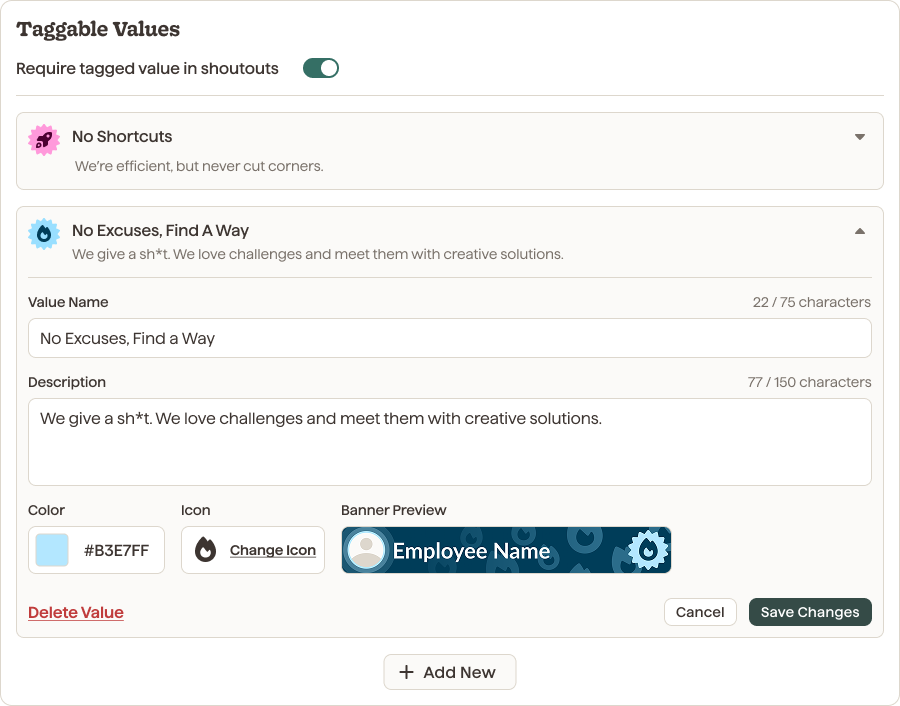
Every shoutout now displays a banner that highlights the recipient and visually represents the company value being recognized. Banners use the icon and color associated with the value selected at the time of sending.
Admins can use HiThrive's premade icon and color options, or upload custom assets to match your brand.
Custom Verb Selection
When sending a shoutout, users can now choose the verb that best fits the moment. Options include Encouraged, Hyped Up, Commended, Cheered On, and more. The selected verb appears directly in the post, making recognition feel more specific and authentic rather than defaulting to a generic "recognized."
AI Writing Assistance
When enabled by an admin, employees can use AI Writing Assistance in the shoutout composer. They describe what happened, pick a tone, and get a draft to work from. This helps recognition actually get sent instead of stalled.
Refreshed Composer
The shoutout composer in Slack and Teams has a cleaner updated look. The functionality is the same, the experience is just more polished and easier to use.
What Admins Need to Do
We recommend completing your setup before April 6 so the experience is fully configured when the update goes live for your team.
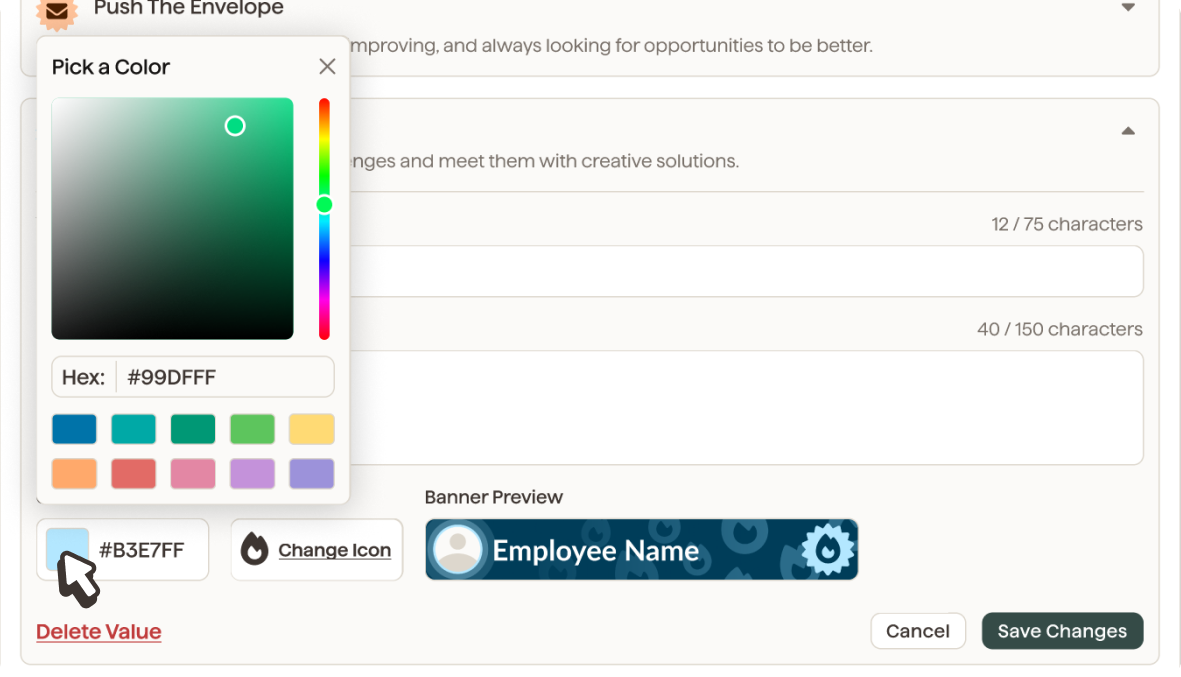
1. Assign icons and colors to your company values (recommended)
This is the most impactful thing you can do. Shoutout Banners pull the icon and color from whichever value is tagged in the shoutout. If your values don't have icons or colors assigned, banners will fall back to a default appearance.
It takes a few minutes and makes a noticeable difference in how recognition looks across your team's feed.
To configure: Admin Panel > Recognition > Shoutouts > assign an icon and color
2. Upload custom banner assets (optional)
If you want shoutout banners to use your own brand imagery rather than HiThrive's premade icons, you can upload custom assets at the value level.
To configure: Admin Panel > Recognition > Shoutouts > upload icon
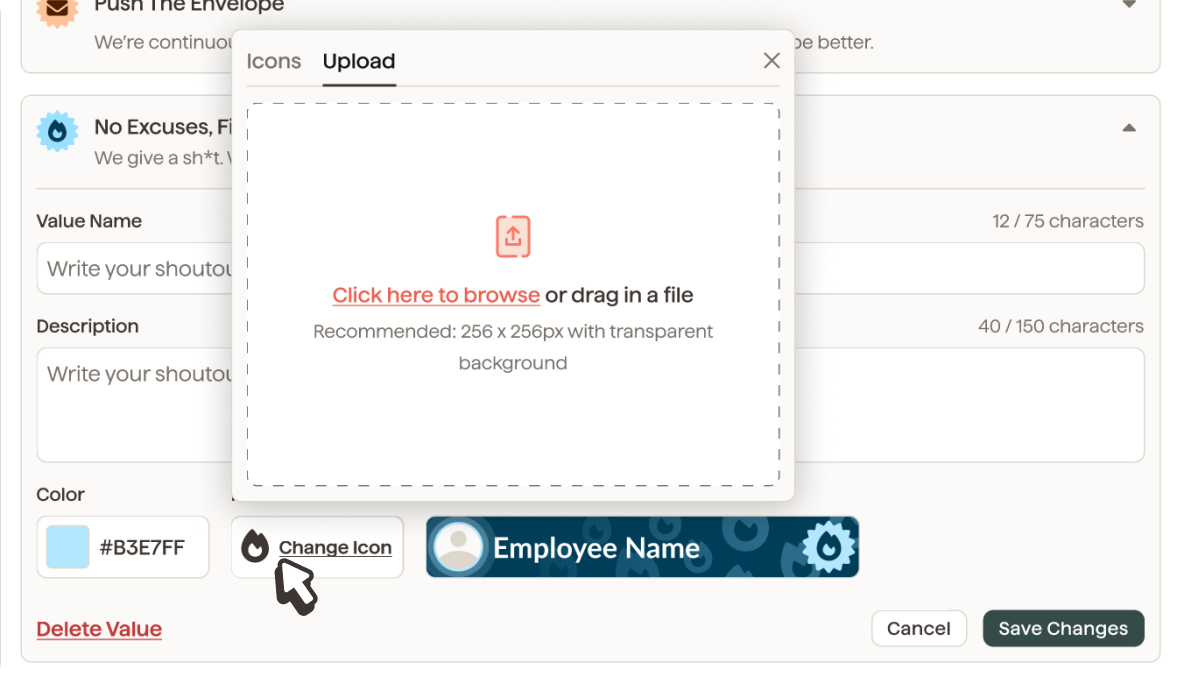
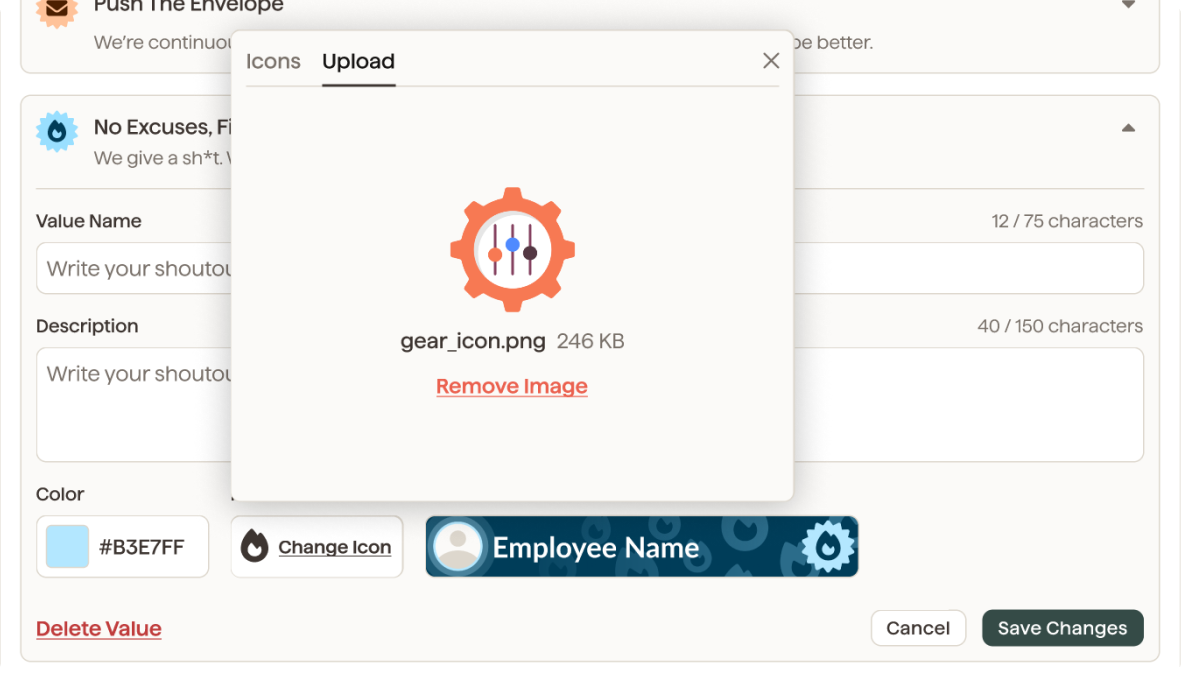
Note: Custom icons should be 512 x 512.
3. Enable AI Writing Assistance
AI Writing Assistance is off by default. If you'd like your team to have access to it in the shoutout composer, you'll need to turn it on in your settings.
To configure: Admin Panel > Recognition > Shoutouts > AI Writing Assistance
Learn more about AI Writing Assistance here.
No Action Required
The refreshed composer and custom verb selection are available to all users automatically on April 6. No configuration needed.
Sharing with Your Team
Once you've completed your admin setup, share the updated guide with your employees so they know what's new: Sending Shoutouts in HiThrive includes step-by-step instructions and screenshots reflecting all of the latest changes.
Questions?
Reach out to your HiThrive account manager or contact support through the admin panel.