

Applies to: All plans with Shoutouts (Core, Pro)
What Is a Shoutout?
A Shoutout is a short message of appreciation you send to a teammate — tied to a company value, visible to your team, and sent in seconds. Shoutouts can include recognition points if your organization has enabled rewards.
Shoutouts are:
Quick to send from Slack, Microsoft Teams, or the web app
Visible in your company's recognition feed and in recipient profiles
Tracked in analytics for participation and reporting
Where Can I Send a Shoutout?
Slack Type /shoutout or /hithrive in any Slack channel in which HiThrive has been made available.
Microsoft Teams In the composition window, select the messaging extension (+ button) and select HiThrive
Web App Go to app.hithrive.com, navigate to the Home tab, and click "Start sharing your Shoutout."
How to Send a Shoutout
The steps below reflect the updated composer experience available beginning April 6, 2026.
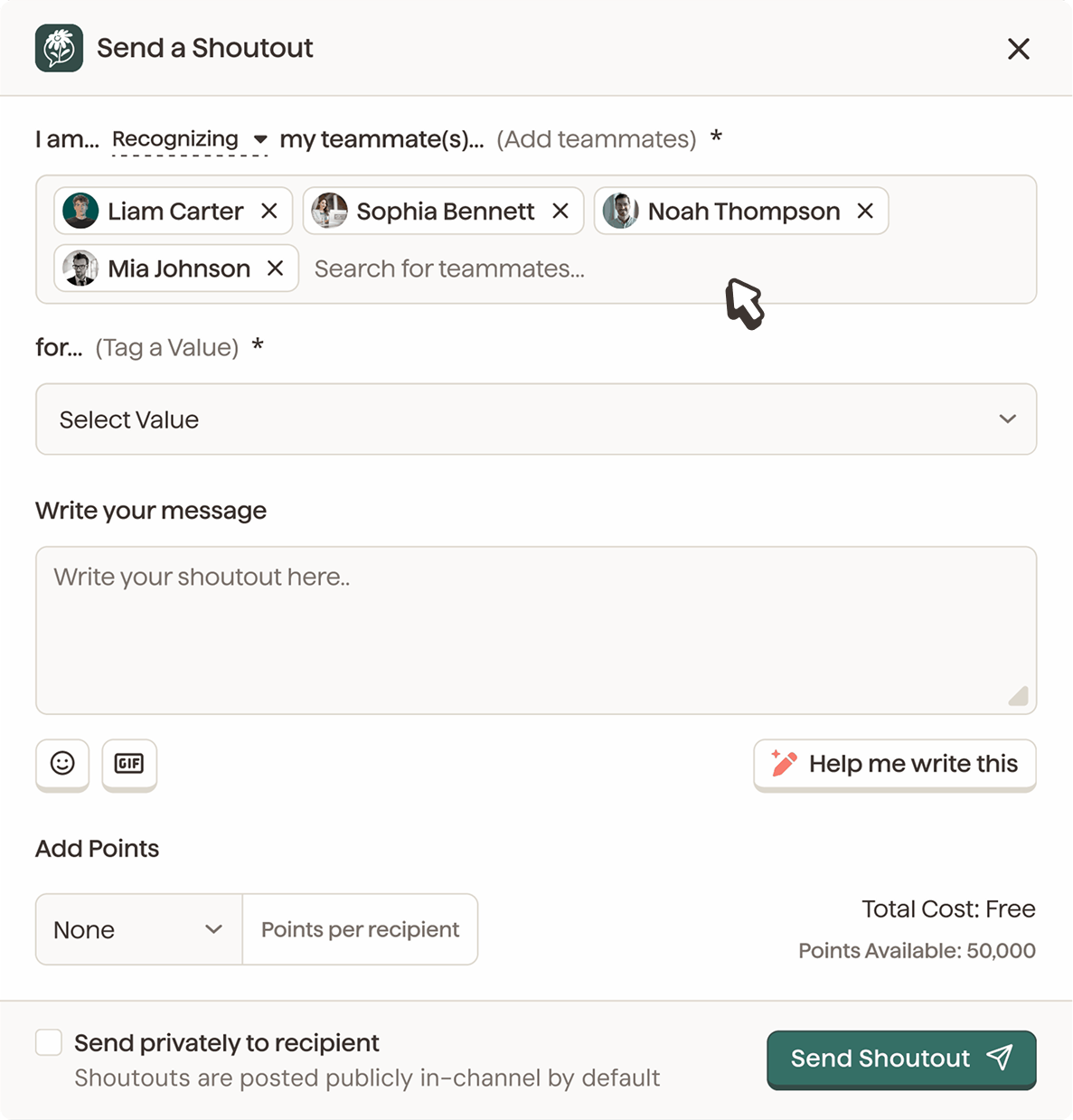
Step 1: Add recipients
In the "I am... recognizing" field, search for one or more teammates by name. You can recognize multiple people in a single shoutout — just keep adding names until everyone is included.
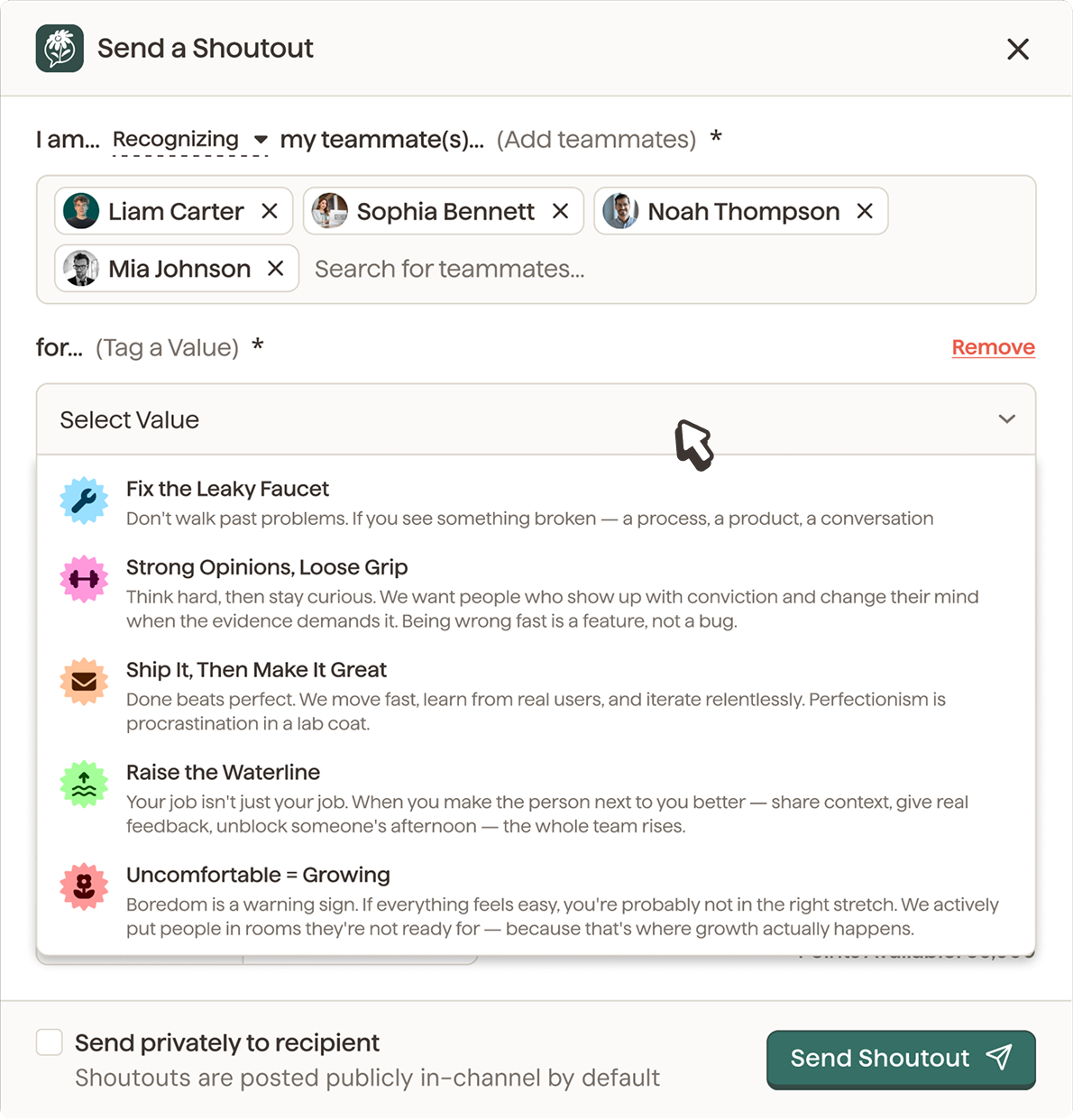
Step 2: Tag a company value
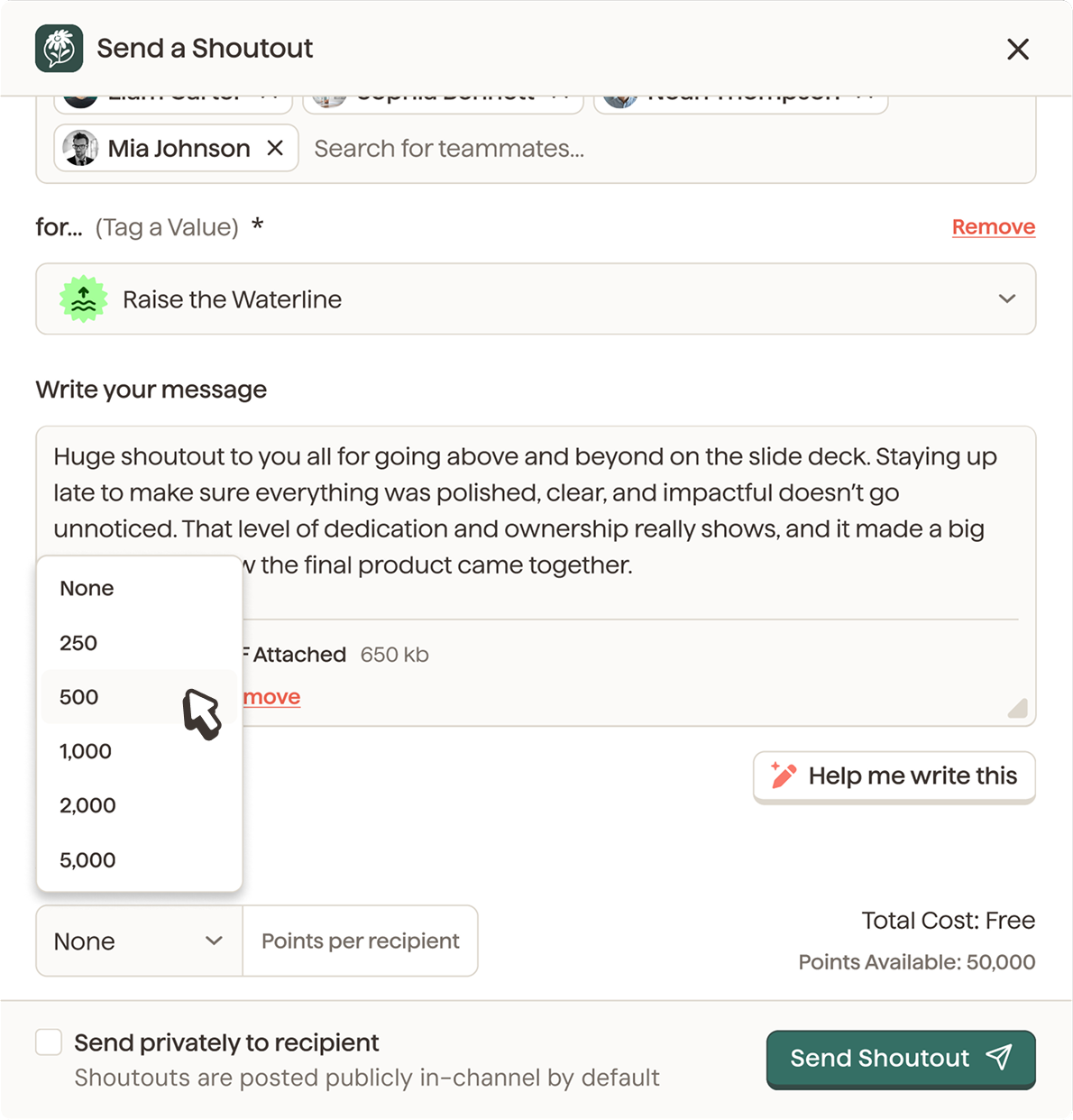
Open the value dropdown and select the value that best fits the moment. Each value displays its icon and a short description to help you choose. The value you select will determine how the shoutout banner appears in the feed.
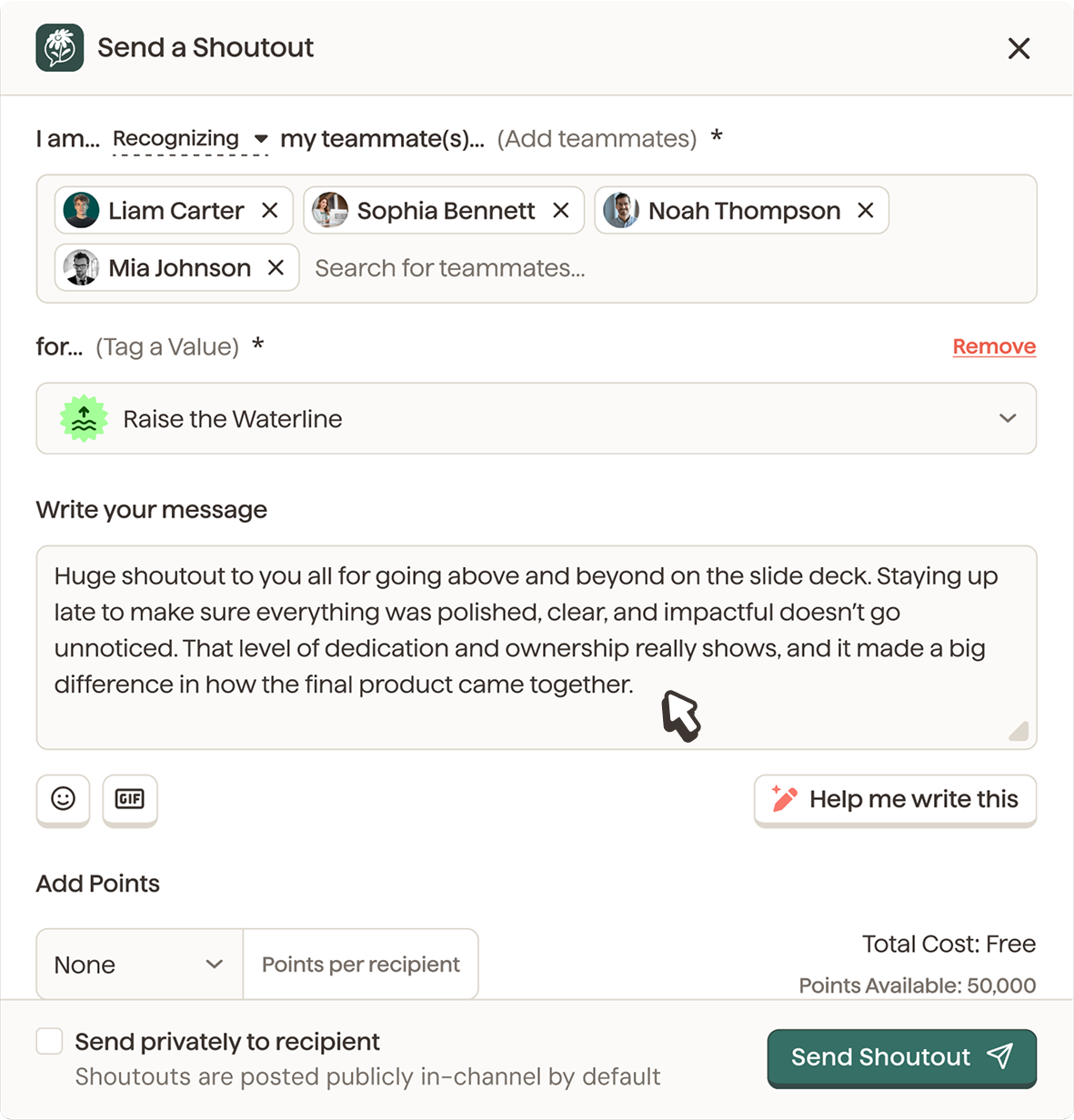
Step 3: Write your message
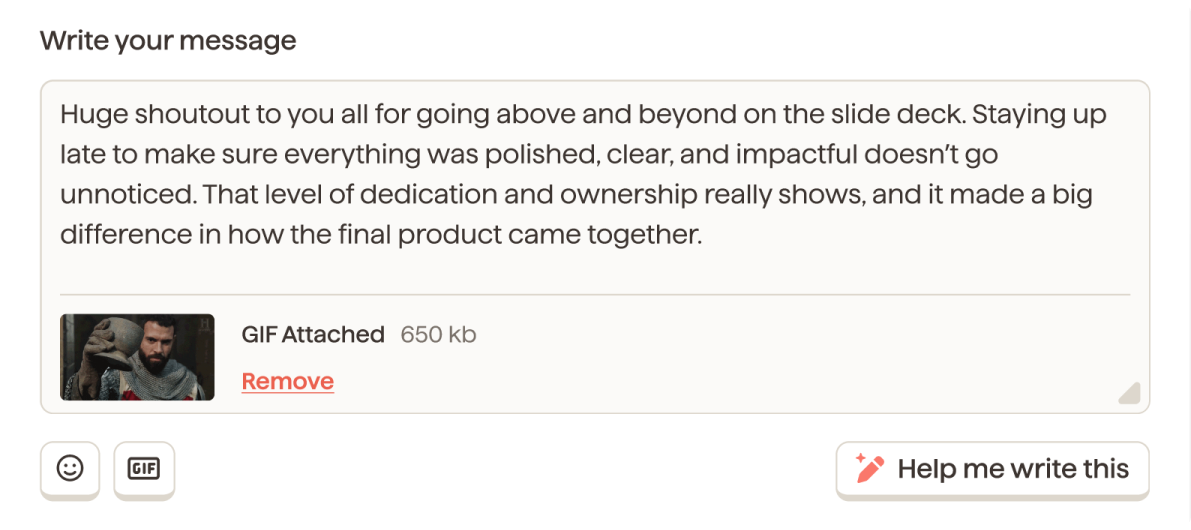
Type your message in the "Write your message" field. Keep it specific — the more concrete the detail, the more meaningful it lands.
Step 4: Use HiThrive AI, the writing assistant (optional)
If you want a hand putting the moment into words, click Help me write this to open Sprout (HiThrive AI).
Start by jotting down whatever you have. A bullet point, a rough sentence, or a quick word dump all work:
"Grace covered two of my meetings while I was out sick, make sure she knows it didn't go unnoticed."
Sprout reads what you gave it and decides what to do next. If there's enough to work with, it writes a full draft. If the context is thin, it asks one specific follow-up question to draw out the detail that will make the recognition land.
From the draft, you can:
Edit the text directly Add more context and regenerate Ask Sprout to try again Apply a tone tuner such as happier, funnier, professional, more sincere, or shorter.
When you're happy with it, send the shoutout straight from the HiThrive AI window.
💡 Sprout helps you say what you mean, it doesn't say it for you. If you already like what you've written, skip this step entirely and send as-is.
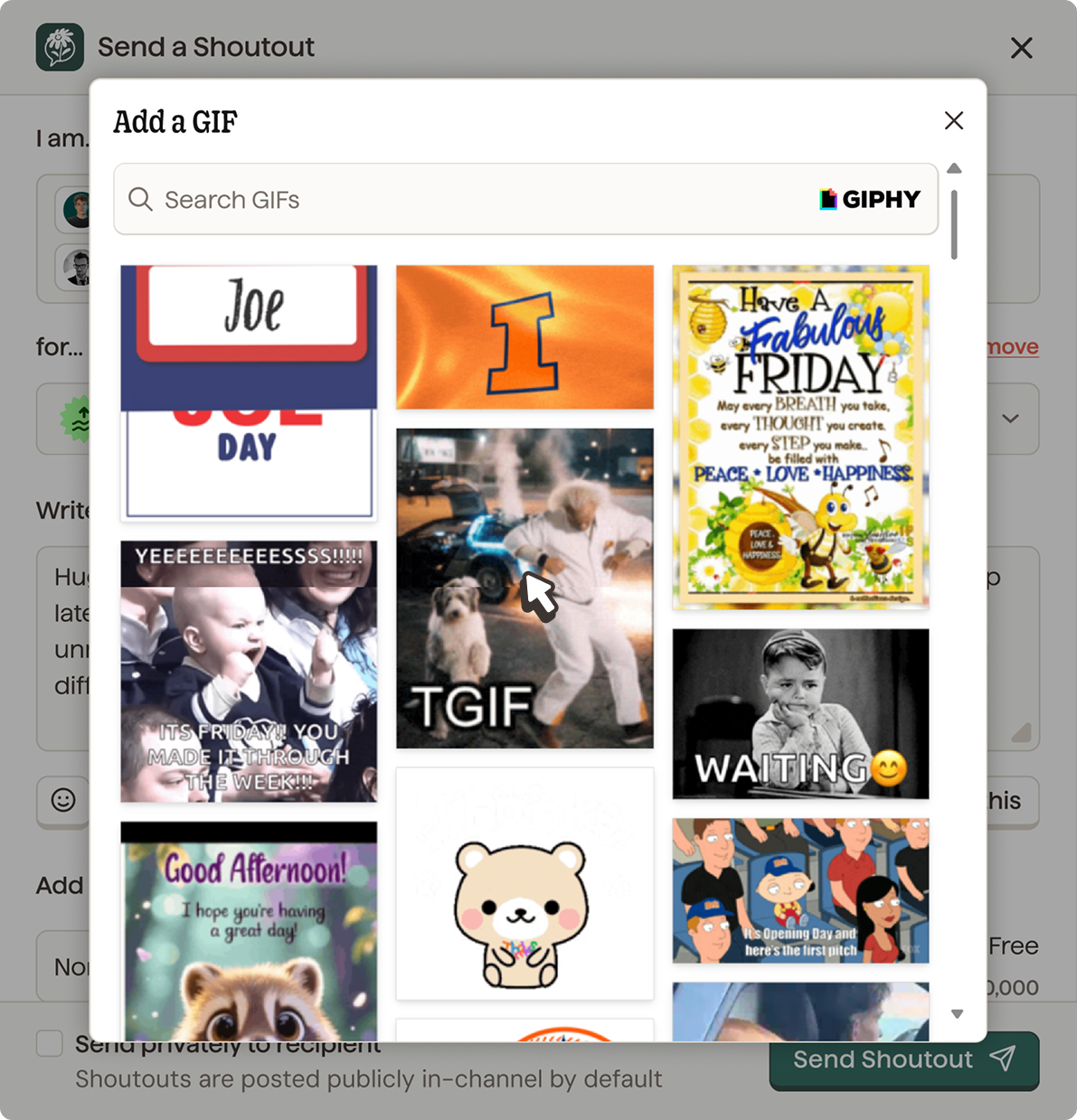
Step 5: Add a GIF (optional)
Click the GIF button in the composer toolbar to open the GIPHY search. Find something that fits and click to attach it. Once attached, you'll see a confirmation with the file size and a Remove option if you change your mind.
Step 6: Add points (optional)
If your organization uses points-based recognition, you'll see an "Add Points" field below the message area. Select the amount you'd like to give. The composer will show the per-recipient cost and your total points available so you can see exactly what you're working with.
Points are not required — you can send a shoutout without attaching any.
Step 7: Choose visibility
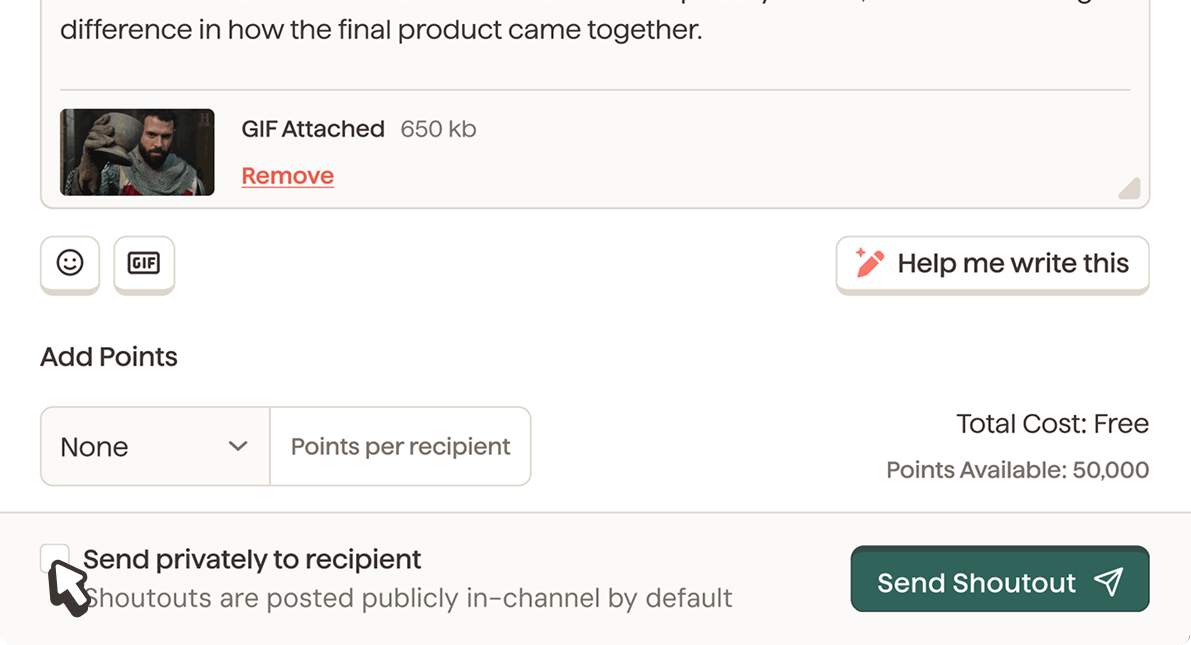
Shoutouts are posted publicly to your recognition channel by default. If you'd like to send directly to the recipient without posting publicly, check "Send privately to recipient" before submitting.
Step 8: Send it
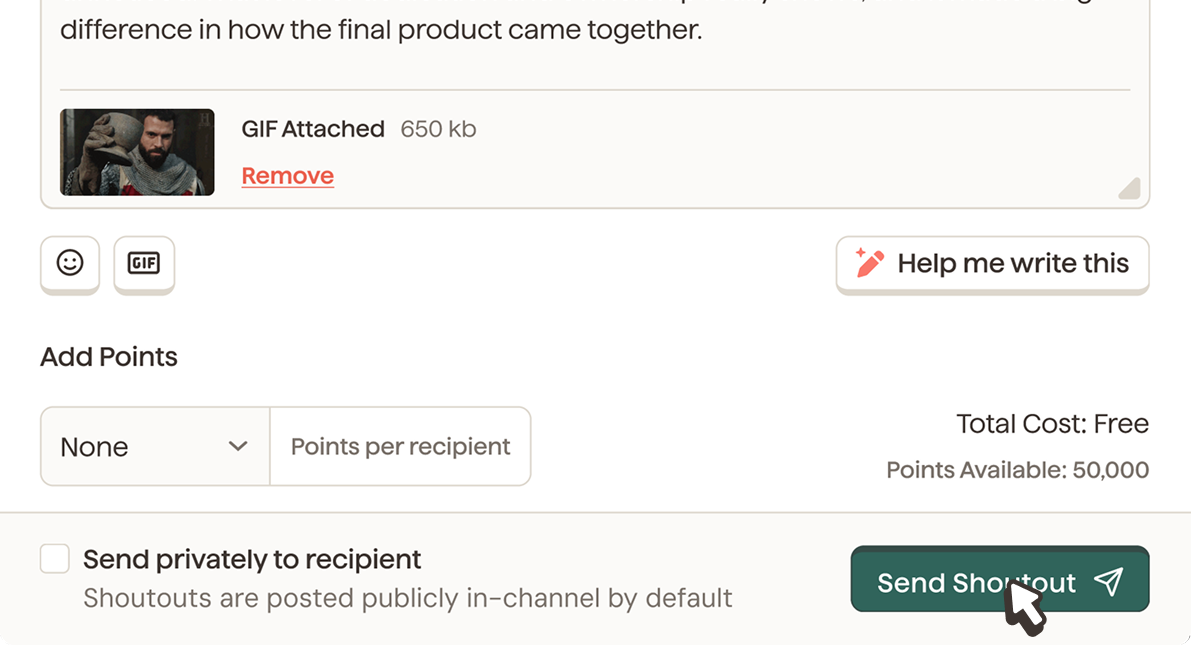
Click "Send Shoutout." That's it.
Where Shoutouts Appear
Once sent, your shoutout will show up in your team's Slack or Teams recognition channel, in the HiThrive web app feed, on the recipient's profile, and in your manager's dashboard. It will also be counted in participation analytics.
FAQ
Can I recognize more than one person at once? Yes. Add as many recipients as you'd like in the recipient field. Points are applied per recipient, so the total cost will reflect the full group.
Can I edit or delete a shoutout after sending? Not at this time. If you made an error, contact your admin — they can remove the post if needed.
Does the recipient get notified? Yes. They'll receive a notification in Slack or Teams, and by email if your organization has email notifications enabled.
How do I change the tone of a draft? After HiThrive AI generates a draft, use the tone tuners to adjust it. Options include funnier, more sincere, and shorter. You can apply them repeatedly until the message sounds right.
Is HiThrive AI available to everyone? HiThrive AI is on by default, but your organization can turn it off in Shoutouts settings. If you don't see the option to open it, check with your admin.
Do I have to attach points? No. Points are optional. You can send a meaningful shoutout with just a message and a value tag.
👏 Ready to Send Your First Shoutout?
Go ahead! Recognition feels good, and it matters more than you think.