

When your organization adds you to HiThrive, you'll receive an email invitation with a short setup flow: create a password, set your celebration preferences, and choose your country.
Already using HiThrive in Slack or Teams?
You can keep going. If your team uses HiThrive through Slack or Microsoft Teams, you don't need to complete this setup before you start sending and receiving recognition. Your access works through your existing company login.
What this setup does is let you set two things: how you'd like your birthday and work anniversary handled, and which country you're in so you see the right rewards. Worth doing when you have a minute. If you skip it now, you'll be prompted again the first time you visit the HiThrive web app or browse the rewards marketplace.
Step 1: Open your invitation
Look for an email from HiThrive with the subject "Welcome to HiThrive, we're glad you're here!"
Click Activate my account to get started.
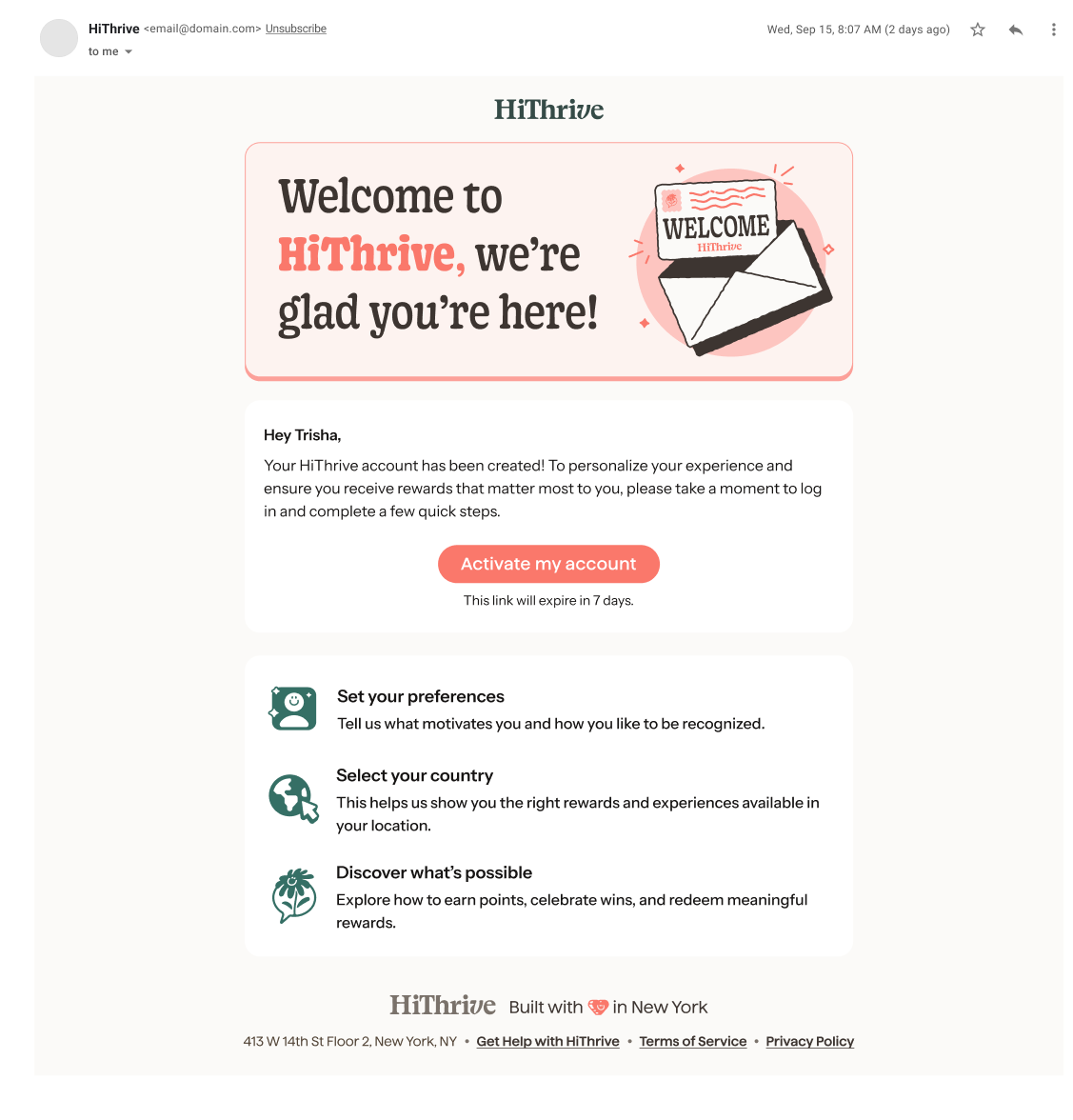
⚠️ The activation link expires after 7 days. If yours has expired, ask your HiThrive administrator to resend the invitation.
💡 Don't see the email? Check your spam or junk folder. If your company filters email heavily, your IT team may need to allowlist no-reply@hithrive.com.
Step 2: Accept the invite
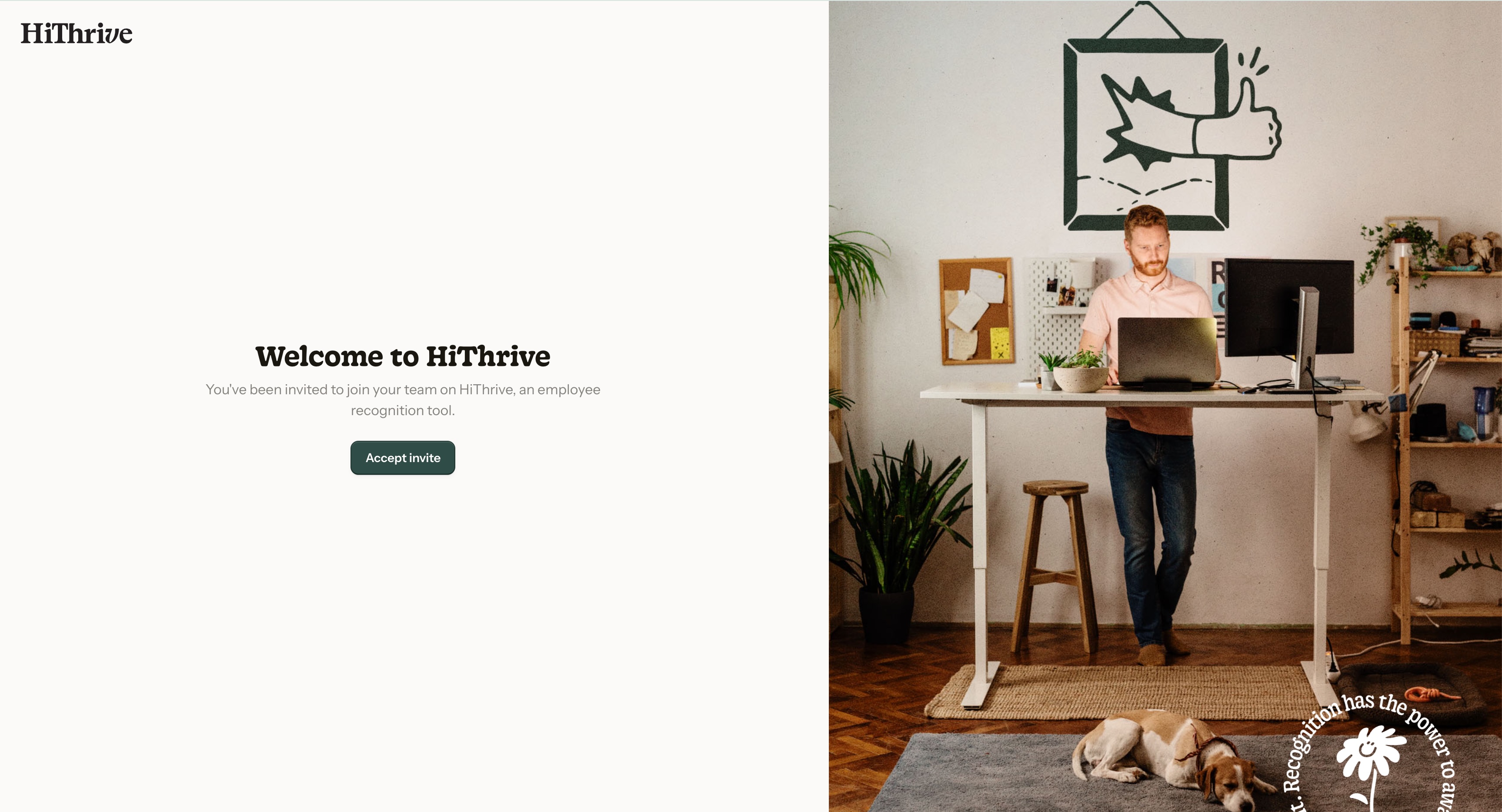
The link opens HiThrive in your browser. Click Accept invite to continue.
Step 3: Create a password
Your password needs:
At least 6 characters
An uppercase letter
A lowercase letter
A number
A symbol or special character
Requirements check off as you type. Confirm your password and click Next.
💡 If your company uses single sign-on, you'll sign in through your usual company login instead and won't see this step.
Step 4: Set your celebration preferences
Choose how you'd like your birthday and work anniversary handled. You get three options for each:
Option | What happens |
|---|---|
Include me in public celebration | Your celebration is shared with your team |
Only celebrate privately | You get a private message, nothing is posted publicly |
Skip entirely | No celebration is sent |
Your birth year is never shown to your team. Only the month and day are used.
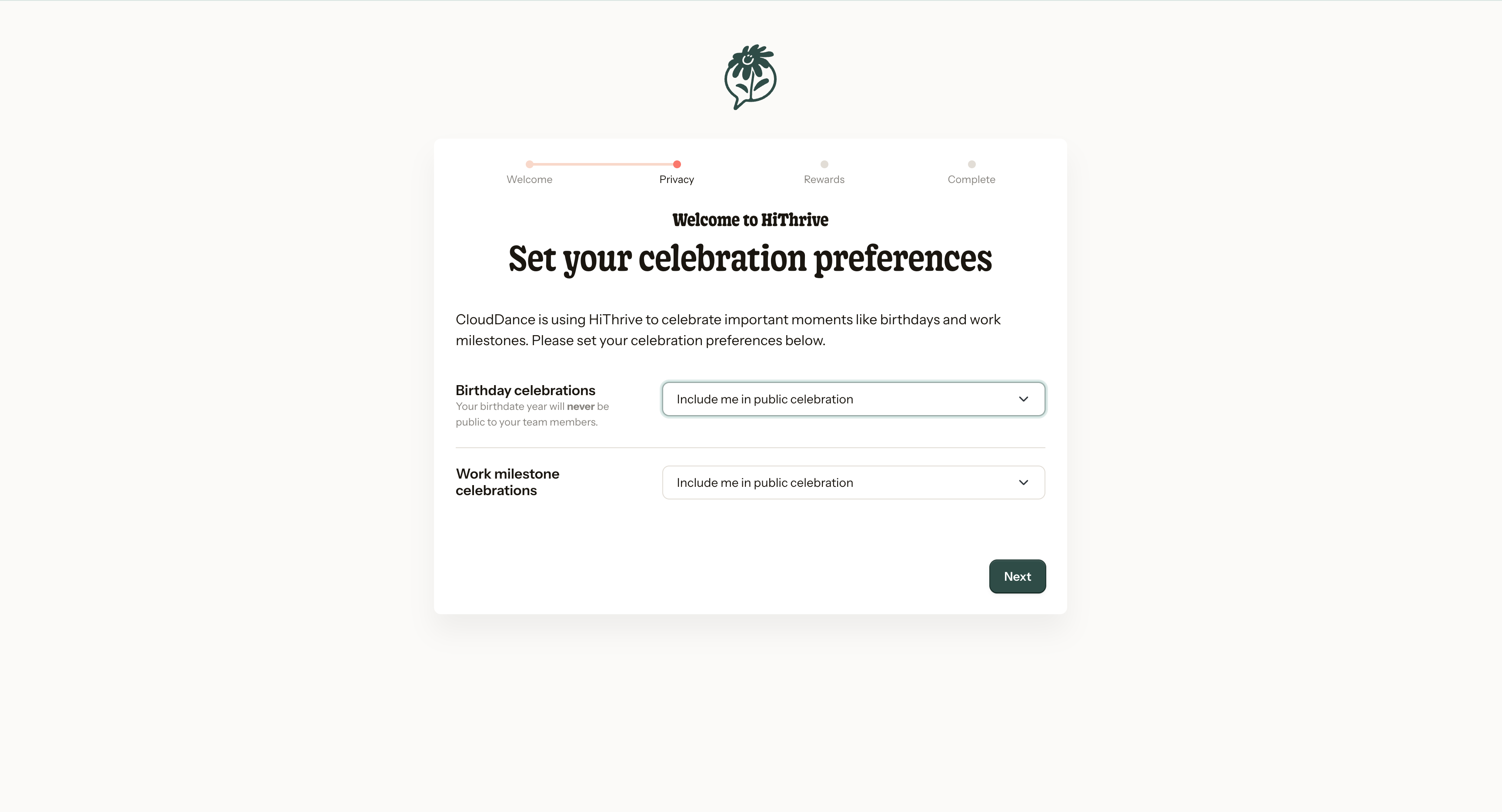
💡 This is the step worth taking a moment on. If you'd rather not have a public birthday post, this is where you say so.
Click Next when you're done.
Step 5: Choose your country
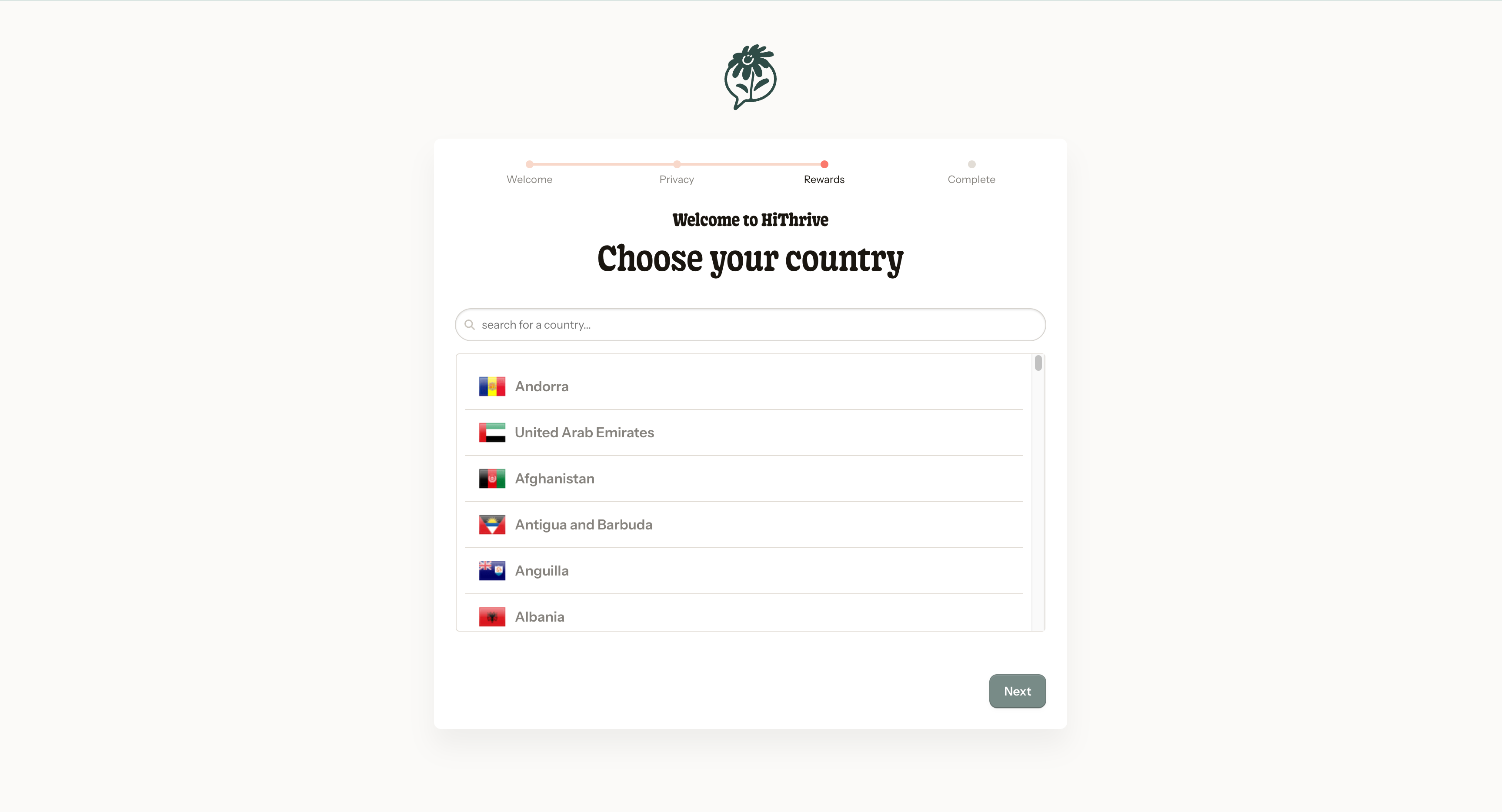
Select your country so you see rewards available where you live. Search for it or scroll the list.
Once selected, you'll see a confirmation with a (change) link if you need to correct it. Click Next.
Step 6: You're in
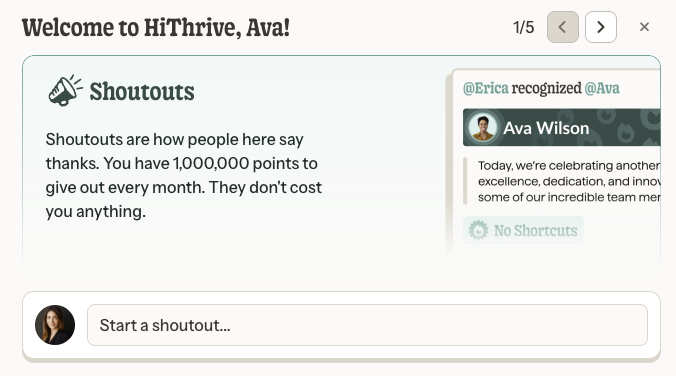
You'll land on the HiThrive home feed, where a short tour introduces the main features: Shoutouts, Spot Celebrations, Nominations, Challenges, and Rewards. Click through it or dismiss it.
Two kinds of points show in your sidebar, and the difference matters:
Giveable points are for recognizing other people. They reset on a schedule and don't cost you anything. Use them.
Redeemable points are what you've received from others. These are yours to spend in the rewards marketplace.
Changing your preferences later
Everything you set here can be changed. Go to Account Settings from your profile in the sidebar.
💡 Stuck on something? Click Need help? at the bottom of any screen, or reach out to your HiThrive administrator.